
Looking for the best webcam for online meetings? Clear video can make a noticeable difference during client calls, team meetings, interviews, webinars, online classes, and remote work.
For professionals, a webcam should provide more than just a picture. Resolution, autofocus, microphone quality, lighting performance, privacy, compatibility, and ease of setup all matter when video meetings are part of your daily work.
In this guide, we explain what to look for when choosing a webcam for professional use and how to create a better video-call setup.
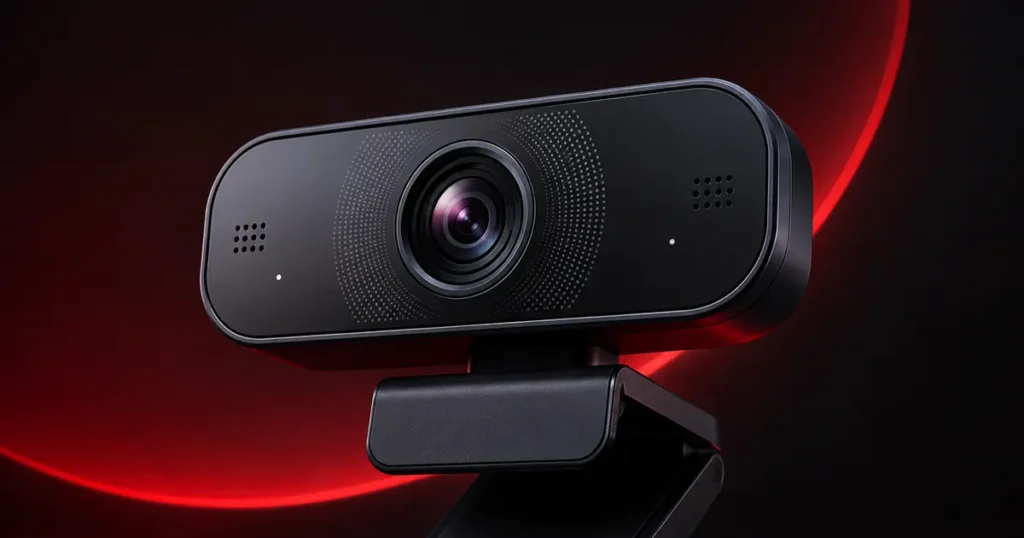
Table of Contents
Why the Best Webcam for Online Meetings Matters
Video meetings are now part of everyday business communication. A poor camera can make your image look dark, soft, grainy, or badly framed, even when your internet connection is good.
A better webcam can help you appear clearer and more professional when speaking with customers, colleagues, suppliers, or business partners.
1. Choose the Right Video Resolution
For most professional meetings, Full HD 1080p is a practical choice. It provides enough detail for video calls without creating unnecessarily large data requirements.
Higher-resolution webcams are also available, but the actual meeting quality can depend on the conferencing platform, internet connection, and computer performance.
For normal office work, a good 1080p webcam is often more important than simply buying the model with the highest advertised resolution.
2. Autofocus and Image Clarity
Autofocus helps keep your face clear when you move slightly closer to or farther away from the camera.
This is useful during presentations, demonstrations, or long meetings where you are unlikely to remain perfectly still.
Look for a webcam that can maintain a stable, natural-looking image instead of constantly hunting for focus.
3. Check Low-Light Performance
Office lighting is not always ideal. You may work near a bright window during the day and under artificial lighting in the evening.
A webcam with good automatic exposure and light correction can help produce a more balanced picture in changing conditions.
Even with a good webcam, placing a soft light in front of you generally gives better results than relying on a ceiling light behind or above you.
4. Built-In Microphone Quality
Many webcams include one or two microphones, which can be convenient for straightforward meetings.
However, professionals who regularly conduct important client calls, training sessions, webinars, or recordings may get better audio from a dedicated headset or USB microphone.
The webcam microphone is useful as an all-in-one solution, but clear audio is just as important as clear video.
5. Consider Privacy Features
A physical privacy shutter or cover is a useful feature for a webcam that remains attached to your computer.
It gives you a simple visual way to block the camera when it is not in use.
If the webcam does not include a built-in shutter, an appropriate removable privacy cover may be worth considering.
6. Compatibility and Easy Setup
Before buying, check that the webcam works with your operating system and preferred meeting applications.
Most modern USB webcams are designed to work with popular services such as Zoom, Microsoft Teams, Google Meet, and other video-call platforms.
For business use, plug-and-play operation is particularly convenient because it reduces setup time when moving between computers or meeting rooms.
Recommended Webcam for Professionals
A practical option for professional meetings is a Full HD Webcam suitable for video calls, remote work, online classes, and everyday communication.
It can be a useful addition to a home office or business workstation where clear video and simple setup are important.
As an Amazon Associate, Djeema may earn from qualifying purchases at no additional cost to you.
7. Position Your Webcam Correctly
Even the best webcam can produce an unprofessional result if it is positioned badly.
Try to place the camera close to eye level. If your laptop sits too low, an adjustable laptop stand can help raise both the screen and webcam to a more natural height.
A clean background, front-facing light, and eye-level camera can significantly improve the overall appearance of your meetings.
Webcam vs Built-In Laptop Camera
Modern laptop cameras have improved, and for occasional calls they may be perfectly adequate.
A separate webcam can still be useful if you want better positioning, improved image quality, more flexibility, or a dedicated camera for an external monitor.
Desktop computer users may also need an external webcam because many monitors do not include a camera.
How to Choose the Best Webcam for Online Meetings
Before buying a webcam, check:
- 1080p or suitable video resolution
- Autofocus performance
- Low-light and exposure correction
- Built-in microphone quality
- Field of view
- Privacy shutter or cover
- USB connection type
- Windows and Mac compatibility
- Support for your preferred meeting applications
- Mounting and positioning options
Build a Better Video Meeting Setup
A webcam works best as part of a complete professional workspace. Useful accessories can include a USB microphone, wireless headset, laptop stand, desk lamp, wireless mouse, and USB-C hub.
You can browse more business and professional accessories on our Djeema Recommended Products page.
Final Thoughts
The best webcam for online meetings should provide clear video, reliable focus, good compatibility, and easy everyday operation.
You do not necessarily need the most expensive webcam. A well-positioned Full HD camera combined with good lighting and clear audio can create a professional meeting setup for most business users.
For professionals who regularly meet customers, colleagues, suppliers, or partners online, choosing the best webcam for online meetings can improve communication and make virtual conversations feel more polished.